

Jul 31, 2026Posted by Kevin Miller to Play DVD
While physical media collectors still hoard libraries of classic movies, home recordings, and special editions, modern operating systems like Windows 11 and 10 have completely stripped native DVD players to save on licensing fees. This made third-party DVD players a necessity for opening physical media on modern Windows PCs. In this article, we will solve this problem to bypass codec issues and region restrictions by featuring five of the best DVD players for Windows 10/11. These programs will be reviewed and independently tested to provide an objective guide on the capabilities of these free and paid DVD players. This article aims to provide seamless, high-quality playback directly on your modern PC.
- Part 1. How We Test DVD Player Software
- Part 2. Top 5 DVD Players for Windows: In-Depth Reviews
- Part 3. Quick-Reference Feature Comparison Matrix
- Part 4. Crucial Hardware & Technical Context
- Part 5. FAQs About DVD Players on Windows
Part 1. How We Test DVD Player Software
Testing Hardware Setup
To test the DVD player apps for Windows that we have featured, we made sure that our desktop runs on the standard Windows 11 version. Since most modern computers and laptops lack a built-in DVD drive, we used an external USB 3.0 optical drive to access physical DVD media during testing.
Disc Selection Protocols:
- Homemade/unencrypted home video DVDs
- Commercial DVD with built-in CSS encryption
- Region-locked international discs.
- Local digital copies (ISO and VOB formats).
With the computer setup now discussed, we will proceed to the discs we used to review the programs. We tested four types of DVD media: a home-recorded DVD, a commercial release with basic CSS encryption, region-locked media, and a DVD written with digital copies saved as ISO images.
Core Metric Evaluation
Decryption Performance
Since most modern DVDs have active decryption systems, the first metric we used for evaluation was each program’s speed, measured by how quickly it bypassed copyright blocks and region walls.
System Resource Drag
To assess the resource consumption of each program, we also measured how each tool uses CPU and RAM during 1080p scaling. This is also important since too much consumption may affect the smoothness of your playback.
Navigation Accuracy
Most DVDs have interactive disc menus, such as title jumping, and hidden bonus features. As such, the DVD player software we have reviewed was tested for how well it navigates these menus.
Audio/Visual Fidelity
Finally, we also tested the audio and visual quality of DVDs played on each piece of software. This was done by assessing color upscaling accuracy and multichannel audio pass-through (Dolby/DTS).
Part 2. Top 5 DVD Players for Windows: In-Depth Reviews
Tool 1: VLC Media Player (Best Open-Source & Completely Free Alternative)
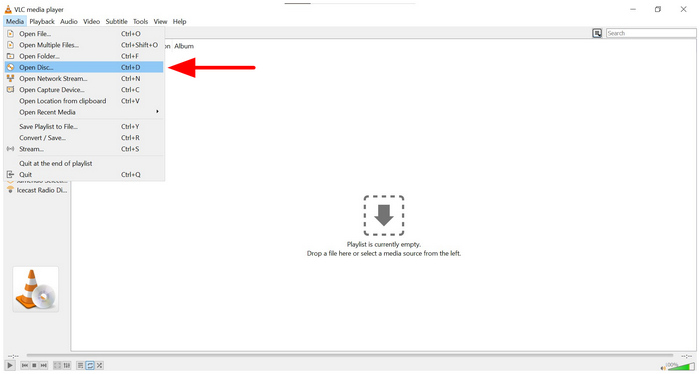
We will start this article by featuring the safest option for everyday users seeking an ad-free, lightweight utility tool with none other than VLC Media Player. As its name suggests, VLC is originally a multimedia player equipped with advanced features for playing DVD media as well.
Since it is an open-source, completely free option, VLC DVD player for Windows 10 is a solid choice for users who already use it as their media player. Unfortunately, its DVD player feature is only a bonus, which makes its performance in that area inconsistent.
Deep-Dive Features:
- Built-in libdvdcss plug-in to open decrypted DVDs natively.
- Robust hotkey settings for a more efficient workflow.
- Audio boosting volume controls.
Pros
- 100% free without tracking plug-ins.
- Balanced industrial and multimedia functions.
- Popular option across different operating systems.
Cons
- Dated aesthetic and interface design.
- Occasionally, green-screen errors occur due to rendering bugs.
- It may fail when trying to play encrypted Disney and Sony DVD releases.
Tool 2: PlayerFab DVD Player (Best Overall for Menu Navigation & Collectors)
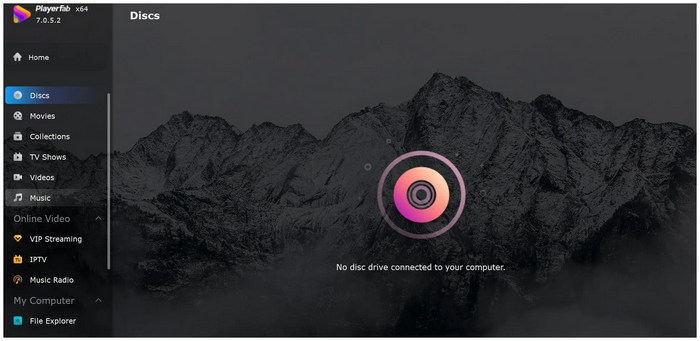
If you are looking for the closest experience to that of an authentic hardware player, PlayerFab DVD Player should be one of your top options. Equipped with an exclusive DVD player mode, this program can read DVD media, much like traditional hardware. It can detect DVD metadata and automatically bypass region locks. As such, this makes it one of the more advanced DVD players for Windows 11/10.
However, the most notable feature of the program is that it can handle interactive DVD menus like no problem. This is the main feature that makes it very familiar to users looking for an alternative to traditional DVD players. However, all these features come at a higher cost of around $170.
Deep-Dive Features:
- Writes the exact rendering of ISO rips.
- Automatic metadata retention.
- Automated region-unlock algorithm.
Pros
- Designed to handle complex interactive menus.
- One of the most trusted paid DVD players.
- Modern design and interface function.
Cons
- Expensive price tag compared to other paid DVD players.
- High system requirements to function normally.
- Small user community.
Tool 3: Blu-ray Master Free Blu-ray Player (Best for Budget 1080p & Clean Performance)
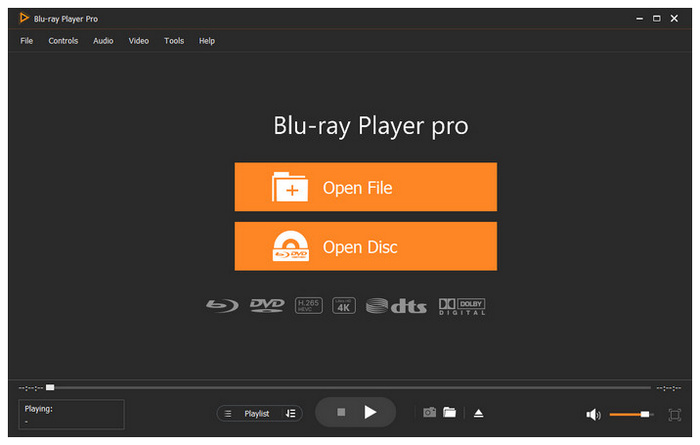
Moving forward, let us now proceed to one of the best choices if you are looking for a highly stable and lightweight freeware utility that securely plays standard DVDs and commercial Blu-rays without taxing your system resources: Blu-ray Master Free Blu-ray Player.
Compatible across different versions of Windows, from 11, 10, and 8, this software, Blu-ray Master’s Blu-ray player, was optimized to load and play multiple physical media files, including DVDs, folders, and ripped ISO files. The program can also be used to create a playlist to control DVD playback easily.
To make all these features accessible, the program was developed to be as simple as possible. To use it, select the DVD title you want to watch, then use the program’s intuitive menu to navigate playback.
To top it all off, it also supports external subtitles for a better viewing experience. As a bonus, the DVD player’s theme, size, language, and other minor parameters are all fully customizable.
To learn more about the program, make sure to read its features, pros, and cons below. Do not forget to download it as well for an easier time learning how to use it.
Free Download
For Windows
Secure Download
Free Download
for macOS
Secure Download
Deep-Dive Features:
- Multi-format architecture handling physical discs
- Writes ISO images, VOB files, and BDMV folders to DVDs.
- Equipped with localized audio encoding pipelines (Dolby 5.1 / DTS).
- Direct screen-capture feature.
- Customizable color grading and contrast controls.
Pros
- Exceptionally clean and intuitive Windows 11-style interface.
- No user tracking or malware in the installer.
- Efficient resource management system.
- Operates well on older laptop batteries to prevent fast draining.
- Easy to use and beginner-friendly.
Cons
- The free version turns off the original interactive menu navigation.
- The free tier does not support 4K UHD and 7.1 surround sound.
Tool 4: CyberLink PowerDVD (Best Premium Home Theater & AI Upscaling)
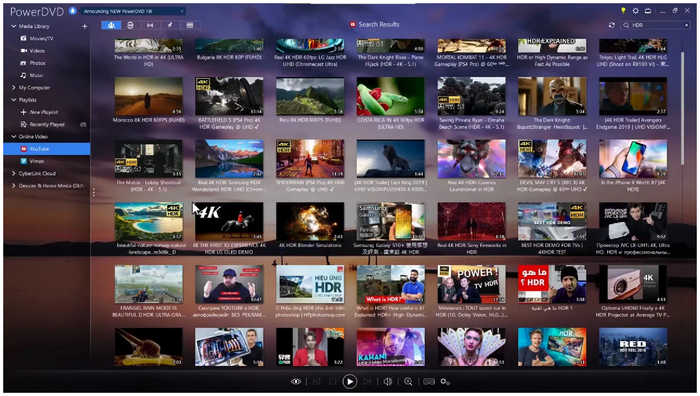
With the three previous options featuring open-source, premium, and balanced DVD players, our fourth tool in this article will be the one designed to maximize DVD image quality on high-end monitors and modern TVs: none other than Cyberlink PowerDVD.
To further improve the viewing experience for its users, it also offers the TrueThreater AI feature, which automatically upscales, sharpens, and optimizes the video and audio of its media files. This will make standard-definition content look better on high-resolution displays. Unfortunately, all these enhancement features consume so many resources on your computer, making the program quite demanding.
Deep-Dive Features:
- Proprietary TrueTheater AI enhancement suite.
- Equipped with color correction and frame upscaling features.
- Casting support to allow smart displays.
Pros
- Cinema-grade visuals when handling high-quality DVDs.
- Dolby Atmos audio pass-through.
- Modern interface design and functions.
Cons
- High background resource consumption.
- Aggressive upgrade prompts and built-in ads.
Tool 5: VideoByte Blu-ray Player (Best All-Rounder for Seamless Decryption)
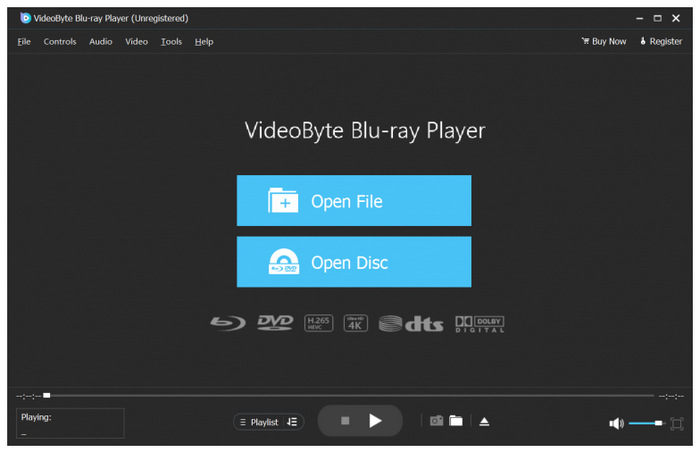
Finally, the fifth option we will highlight is the VideoByte Blu-ray Player, one of the most popular mid-tier players that securely processes any video format, including modern DVDs, ISOs, and DVD folders.
Similar to the previous programs, it is equipped with hardware acceleration. However, it does not consume too many resources, making it balanced in this regard as well. However, it has an intrusive pop-up ad presence when using the free version. This occurs every time you pause the video playback.
Deep-Dive Features:
- Hardware acceleration system.
- Operates well on Intel/NVIDIA/AMD GPUs.
- Compatible with Blu-ray.
Pros
- Clean and simplified interface.
- Instantaneous decryption system.
- Fast loading times due to GPU acceleration.
Cons
- Intrusive pop-up ads when pausing playback.
- Very limited features when using the free trial version.
- Limited features compared to other paid DVD players.
Part 3. Quick-Reference Feature Comparison Matrix
Now that five of the best paid and free DVD players for Windows 10/11 have been discussed, let us now proceed to the quick reference guide to make our readers easily compare and contrast our featured programs.
We will discuss these tools based on their compatibility, pricing, ease of use, region codes, menu, and other features available on each program.
| DVD Player | System Compatibility | Price | Ease of Use | Region-Free Engine | Direct Menu Support | Other Settings |
| VLC Media Player | Windows, macOS, Linux | Free | Easy | Limited (Requires third-party plug-ins). | Yes | ●Playback speed, equalizer ●Subtitle sync ●Audio/video filters |
| PlayerFab DVD Player | Windows | $169.99 | Very Easy | Yes | Yes | ●HDR playback ●Subtitle management, ●Hardware acceleration |
| Blu-ray Master Free Blu-ray Player | Windows, macOS | Free – $40.21 | Very Easy | Yes | Yes | ●Playlist creation ●Screen capture and snapshots ●Subtitle/audio track selection ●Advanced playback controls ●Hardware acceleration |
| CyberLink PowerDVD | Windows | $69.99/Year | Easy | Yes | Yes | ●TrueTheater enhancements ●HDR Video Quality ●Cloud syncing to access online storage. |
| VideoByte Blu-ray Player | Windows, macOS | $29.95 – $94.43 | Very Easy | Yes | Yes | ●Hardware acceleration ●Subtitle & audio switching ●Lossless audio |
Part 4. Crucial Hardware & Technical Context
The External Drive Dilemma
Before testing this DVD player software, make sure to get a plug-and-play USB 3.0 external optical drive, since most modern thin laptops no longer have internal disc drives. This feature is also rarely available on modern PCs.
Demystifying Region Locks
If you have access to classic DVDs from an international source, you have to be prepared to encounter a region-lock system. This makes playing DVDs harder if it is not compatible with the media player you are using.
To learn the basics of DVD regions, please refer to our table below:
| Region 1 | USA, Canada, US territories |
| Region 2 | Europe, Japan, Middle East, Egypt, South Africa, French overseas territories |
| Region 3 | Southeast Asia, South Korea, Taiwan, Hong Kong, Macau |
| Region 4 | Australia, New Zealand, Latin America, Caribbean |
| Region 5 | Russia, Eastern Europe, India, most of Africa, North Korea, Mongolia |
| Region 6 | China |
Decoding Hardware Acceleration
If your chosen DVD player supports GPU acceleration, it is advisable to enable it when using older laptops. This is vital because playing DVDs requires more resources than playing regular digital videos. Activating this feature will prevent your old computer from lagging or overheating.
Part 5. FAQs About DVD Players on Windows
-
Why doesn’t Windows 11 play my DVD naturally when I insert it into the drive?
This is because Windows 11 does not have a built-in media player that supports DVDs. As such, you need third-party apps to play these media files. You may also need to check whether your external driver has any setup requirements you must complete first.
-
Is it safe to install free DVD players, and how do I avoid malware or hidden bundleware?
Yes, they are. However, bundleware and malware are common among these options. To avoid such issues, make sure to use only trusted options, such as Blu-ray Master or open-source tools like VLC.
-
Can free software options like VLC play commercial Blu-ray discs as easily as standard DVDs?
Yes, it can. However, you need to install additional plug-ins for VLC. It does not support Blu-ray playback by default.
-
What does a “MPEG-2 Codec Missing” error mean, and do I have to buy it from the Microsoft Store?
This means that your computer does not have a media player that supports the classic MPEG-2 codec. This codec may be considered a classic, as it was primarily used on older DVDs. Make sure to download third-party players, such as VLC, to play these media files.
-
Can these desktop programs read and play .ISO image files directly from my hard drive without burning them?
Yes, they can. Most ISO images can be installed as a DVD on media players. Then you can watch them as if you were playing a physical DVD.
Conclusion
Now that we have provided five of the best paid and free DVD players for Windows 11/10, we hope that this article has helped you choose which of these programs best suits your needs. When it comes to open-source options, VLC Media Player is a solid choice. For paid options, CyberLink PowerDVD is good for maximizing video quality. However, if you prefer performance and balance, Blu-ray Master Free Blu-ray Player is by far the best solution.
More from Blu-ray Master
Best DVD Player

Easily play Blu-rays, DVDs, and various video/audio formats with rich playback features.
100% Secure. No virus
